How to Paste Without Formatting on Mac
Use Option + Shift + Command + V (⌥⇧⌘V) in Mac apps with Paste and Match Style. In Google Docs and current Microsoft Word for Mac, use Command + Shift + V (⌘⇧V) to paste without formatting. Click inside the destination text field first. You do not need a clipboard manager for either method.
The right shortcut depends on the app receiving the text. Here are the documented options, what they preserve, and what to do when the shortcut does nothing.
Mac paste shortcuts at a glance
| Where you are pasting | Shortcut or command | What it does |
|---|---|---|
| An app with Paste and Match Style | Option + Shift + Command + V | Uses the surrounding content’s style |
| Google Docs on Mac | Command + Shift + V | Paste without formatting |
| Microsoft Word on Mac, current documented shortcuts | Command + Shift + V | Paste Text Only |
| TextEdit, when you need a plain-text buffer | Format → Make Plain Text, then Command + V | Pastes into a document that cannot retain rich-text styling |
| Paste It! 0.2.8, for a saved text item | Right-click the item → Copy as Plain Text, then Command + V in the destination | Copies plain text from history so you can paste it yourself |
| Paste It! 0.2.8, for the current clipboard | Control + Command + V | With Accessibility enabled, pastes plain text once and restores the original clipboard |
Sources checked September 23, 2026: Apple shortcuts, Google Docs shortcuts, Word shortcuts, and TextEdit document formats. Older app versions, keyboard layouts, or custom shortcuts can differ.
Paste and Match Style vs plain text
These commands solve related problems:
- Paste and Match Style makes pasted content follow the destination’s style. You are still working inside a document that can contain formatting.
- Paste as plain text / Paste Text Only discards the source’s rich-text styling. The destination can still display those words in its own font or apply automatic links and lists.
- A plain-text document cannot store rich-text styling. Use one when you need to remove formatting before copying the text somewhere else.
An editor may turn a pasted URL back into a link, or display plain words in the current heading style. That does not necessarily mean the original formatting survived. Images and table layout are not preserved as rich content when you reduce a selection to plain text.
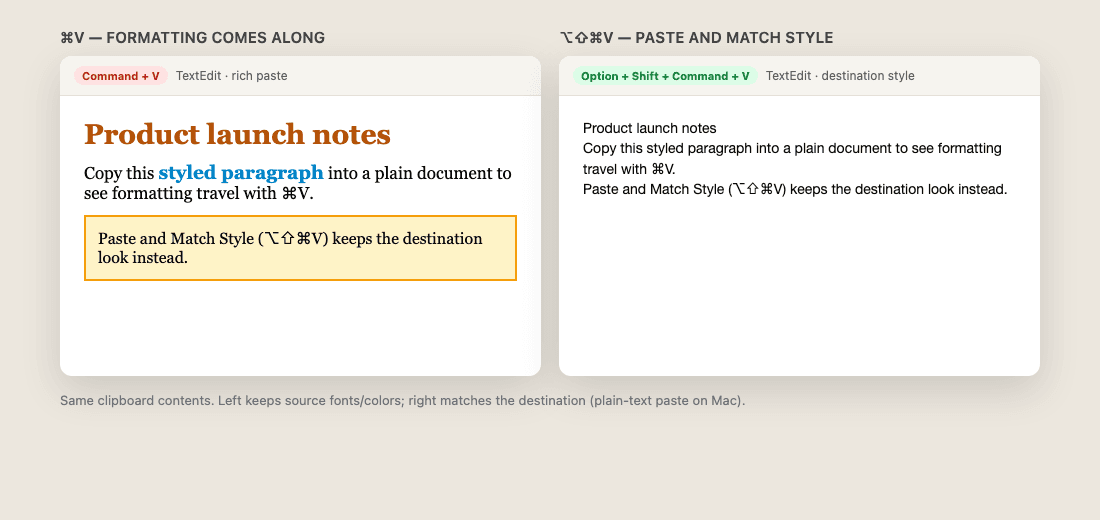
Illustration of the difference in appearance; exact paste results depend on the destination app.
Method 1: Paste and Match Style in Mac apps
- Select the text you want and copy it with Command + C.
- Click inside the destination document at the insertion point.
- Choose Edit → Paste and Match Style, if available, or press Option + Shift + Command + V.
Apple defines this shortcut as applying the surrounding content’s style. Check the app’s Edit menu: a shortcut cannot add a command that the app does not support.
Make a custom shortcut for an app
If you use this command often, go to System Settings → Keyboard → Keyboard Shortcuts → App Shortcuts. Add the target app, enter the menu command exactly as that app spells it, and assign an unused key combination.
Start with one app so the change is easy to check. An App Shortcut only targets an existing menu command; it does not create universal plain-text paste for web editors. Follow Apple’s App Shortcuts instructions if the menu name or key combination is not being recognized.
Method 2: Use the editor’s own plain-text command
Google Docs
Click in the document, then press Command + Shift + V. Google calls this Paste without formatting in its Mac shortcut list. Use Command + / to open Docs’ shortcut help if you need to check the current mapping.
Microsoft Word for Mac
Use Command + Shift + V for Paste Text Only, as listed in Microsoft’s current Word documentation. If you use an older version or customized shortcuts, check Word’s paste menu for its text-only option instead of assuming the same keys apply.
Slack and other web editors
Check the editor’s paste command and formatting preferences. Do not assume every web app implements Apple’s ⌥⇧⌘V command.
Slack documents a persistent option under Preferences → Advanced → Input options → Format messages with markup. With that preference enabled, copied messages paste as plain text; it also changes how message formatting is entered. See Slack’s markup guide. For a one-off paste in an editor without a suitable command, use the TextEdit method below.
Method 3: Remove formatting through TextEdit
This is a built-in fallback when an editor’s shortcut is unavailable:
- Open TextEdit → File → New to create a separate document.
- Choose Format → Make Plain Text. If the menu says Make Rich Text, the document is already plain text.
- Paste the copied text with Command + V.
- Select that text, copy it again, and paste into your destination.
Apple documents that plain-text conversion removes text styles and formatting. Using a new scratch document keeps the source document intact. Copying from it replaces the current clipboard with the cleaned text; unlike a one-time paste command, you would need to recopy the original to use its formatting again.
Why is paste without formatting not working?
| What you see | What to check |
|---|---|
| ⌥⇧⌘V does nothing | Look for Paste and Match Style in the destination’s Edit menu. In Docs or current Word, try ⌘⇧V instead. |
| ⌘⇧V opens a clipboard panel | A clipboard manager may own that shortcut. Use the editor’s menu, or remap the manager's shortcut if it supports that. Paste It! 0.2.8 does not have a hotkey editor. |
| Nothing pastes | Click inside an editable text area, copy a short text sample, and try the menu command. A copied image or file may not have text to paste. |
| The text is still large, bold, or colored | Check whether the insertion point is already inside a heading or styled paragraph. Plain text can take on the destination’s style. |
| A URL becomes clickable again | The destination may create links automatically. Use its remove-link command or paste into a plain-text document. |
| A custom shortcut fails | Check the exact menu title and conflicting shortcuts in System Settings. |
Apple notes that keyboard shortcuts vary by app, language, and keyboard layout; its conflicting-shortcut guide explains where to change them. Trying the menu command first helps distinguish a shortcut conflict from a command the app does not support.
Paste It!: current clipboard or saved history
Disclosure: we make Paste It!, a local Mac clipboard manager. The project is free and open source under the MIT license. These steps describe the downloadable Paste It! 0.2.8 release. The behavior below was checked against the release code, not a benchmark across destination apps.
Paste the current clipboard once without formatting
Copy the source text, click into the destination, and press Control + Command + V while Paste It! is running.
- With Accessibility enabled: the app temporarily places plain text on the clipboard, sends a paste command, then restores the original clipboard. A later normal paste can therefore use the original formatting.
- Without Accessibility: the app leaves plain text on the clipboard and asks you to paste manually with Command + V. It does not restore the original clipboard on this path.
- Without usable text on the clipboard: it reports that there is nothing to paste as plain text. An image-only copy is not automatically OCRed by this shortcut.
These branches are implemented in the release's plain-paste action. Automatic paste requires an editable destination that accepts the command. If the destination does not insert the text, use the manual history method below rather than assuming the paste succeeded.
Copy plain text from a saved item
- Download Paste It! for macOS 14+ and leave it running while you copy text.
- Open its history panel with Shift + Command + V and find the saved text you want.
- Right-click that item and choose Copy as Plain Text.
- Switch to your destination, click the insertion point, and press Command + V.
These explicit copy-and-paste steps do not need Accessibility permission. Shift + Return is the direct-paste alternative: with Accessibility enabled, it pastes the selection as plain text into the destination. Without permission, one selected item is copied and the panel displays a manual-paste message; return to the destination and press Command + V. Multiple selected items require permission.
Copy as Plain Text and Shift-Return replace the current clipboard with text. They do not perform the restore step used by Control-Command-V. The saved history item remains available if you want to copy it again normally.
Return alone is different again: it follows Settings → General → Pasting → Timeline primary action. The default Direct Paste uses Accessibility; Copy Only copies one selected item and closes the panel. Shift-Return uses the plain-text paste path regardless of that setting. See the release's panel actions.
For the broader workflow, see how to view clipboard history, panel features, and Mac clipboard shortcuts. A history tool can only offer items it previously saved; it cannot recover an overwritten copy retroactively.
If unwanted line breaks remain
Line breaks are text too. Removing rich-text styling does not necessarily remove them. If copied PDF text has a break at the end of every line, edit those breaks separately; switching plain-text paste shortcuts will not reconstruct the original paragraphs.