How to Copy and Paste Multiple Items on Mac (In Order)
To copy several separate snippets and paste them in order on Mac, use a paste queue: start collecting, copy each snippet, then press Command-V once for each destination. Move to the next field yourself between pastes. In Paste It!, Shift-Command-C opens the queue; check that its top item is the one you want to paste next.
If you only need to copy a group of files, Finder can already do that. If you need one earlier copy, macOS Tahoe's clipboard history may be enough. Choose the method that matches your task:
| Your task | Method |
|---|---|
| Copy several files from one folder | Select them together in Finder, then copy and paste once. |
| Retrieve a snippet copied earlier | Open clipboard history, choose the item, copy it, then paste. |
| Copy a name, project ID and company, then fill three separate fields | Collect a paste queue and advance it once per field. |
We make Paste It!, a free, open-source Mac clipboard manager. The queue walkthrough below follows version 0.2.9 and uses fictional information you can try in a blank document or form.
Copy several files together with Finder
In Finder, hold Command and click the files you want. Press Command-C, open the destination folder, then press Command-V. Apple describes the selection options in its guide to selecting multiple items.
This copies a selection of files in one operation. It does not create a queue of separate text snippets from different apps. You do not need a clipboard manager for this Finder workflow.
Retrieve separate copies with macOS clipboard history
On macOS Tahoe 26, press Command-Space, then Command-4 to open Clipboard in Spotlight. Enable history if prompted. Find an item, select it and press Command-C; return to your destination and press Command-V.
Apple's Clipboard history guide describes this item-by-item retrieval. It is useful for a link or paragraph you copied earlier. For the version differences and recovery limits, see how to view clipboard history on Mac.
When you already know the next three pieces of information you need, a queue lets you prepare their order before filling the destination.
Copy three snippets, then paste them into three fields
Use these sample values. The goal is to collect all three before switching to the destination:
| Copy order | Sample text | Destination |
|---|---|---|
| 1 | Avery Chen | Name |
| 2 | ORBIT-4821 | Project ID |
| 3 | Example Studio | Company |
1. Open an empty Paste Stack
Keep Paste It! running and press Shift-Command-C, or choose Open Paste Stack from its menu-bar menu. A small Stack panel opens at the side of the screen and starts collecting new copies.
The queue needs Accessibility permission to make Command-V advance through its items. If prompted, review the request and enable Paste It! in System Settings → Privacy & Security → Accessibility, then return to your work. Ordinary manual copying from history is a separate workflow and does not require that permission.
Opening a new stack does not populate it with your old history. Copy the items you want after opening it. If a stack is already open, finish using it first: Shift-Command-C also closes the stack and clears its remaining queue.
2. Copy each value and check the queue
Select Avery Chen and press Command-C. Wait until it appears in the Stack panel. Do the same for ORBIT-4821, then Example Studio.
You can collect these values from different apps; the sample keeps them together so you can check the result easily. Confirm that all three items appeared before moving on. If one is missing, copy it again and check capture settings rather than assuming it was saved.
3. Put the next item at the top
The top row is the next item to paste. For this example, the visible order should be name, project ID, company.
The arrow button reverses the direction between copy order and newest first. Paste It! remembers the direction, so check the rows instead of assuming a fresh stack always starts in copy order. To make one particular item next, right-click that row and choose Move to Next.
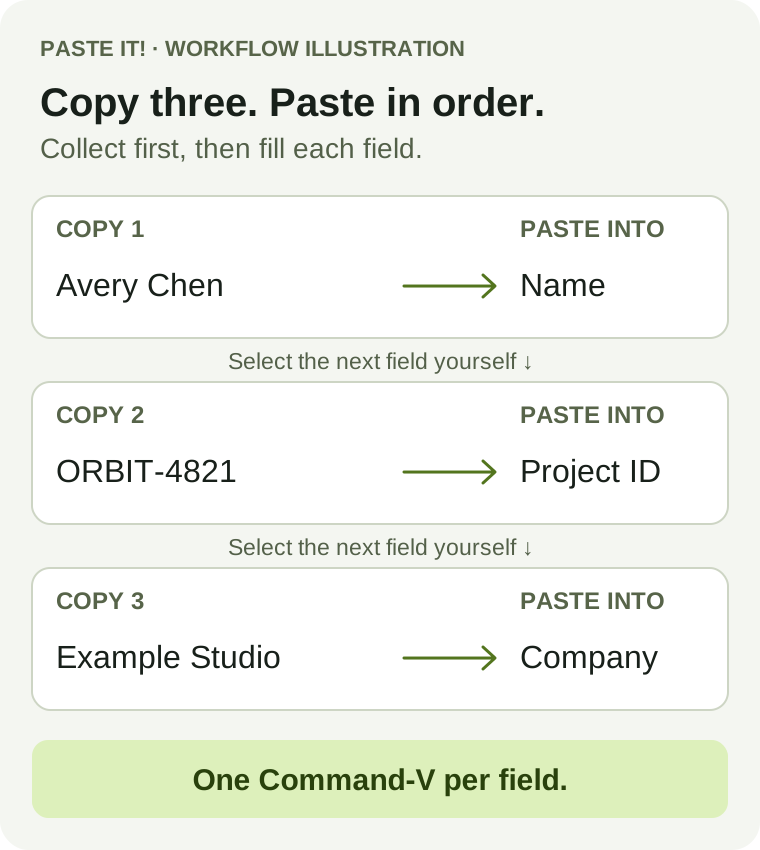
Workflow illustration using the sample values, not a screenshot of the application. Each arrow represents one paste into a field you selected.
4. Paste once, move to the next field, then paste again
Click the Name field and press Command-V. Check the inserted text before continuing. Move to Project ID with Tab if the form's tab order is correct, or click it directly, then press Command-V. Repeat for Company.
The intended result is:
Name:       Avery Chen
Project ID: ORBIT-4821
Company:    Example Studio
Paste Stack does not choose the next field or press Tab for you. If you leave the cursor in one field, successive pastes go to that same field. In a blank text document, insert your own newlines between pastes instead.
The queue advances when it handles the paste command; it does not validate what the destination accepted. If a field rejects a paste or focus moves unexpectedly, stop and check both the field and the remaining queue before trying again.
5. Close the stack when you finish
After the last item, the stack can remain open and collecting. Close it with Shift-Command-C or its close button when you are done.
Closing clears the queue, not your saved clipboard history. An empty queue also does not make an extra Command-V harmless: normal pasting can repeat the current clipboard content. Check that the form is complete before pressing Paste again.
Fix missing items, reversed order or repeated text
| What happens | What to check |
|---|---|
| Command-V keeps pasting the current clipboard instead of advancing | Confirm the queue contains items and Paste It! has Accessibility permission. Use the actual Command-V shortcut; the queue's automatic advance listens for that key combination. |
| The company appears before the name | Check the top row and reverse the arrow direction if needed. The app remembers your previous direction. |
| A copied snippet never enters the stack | Confirm capture is not paused and the source app is not excluded. Wait for each row to appear before copying the next value. |
| Copying the same value twice produces one row | Version 0.2.9 skips consecutive duplicate copies. Paste a repeated field manually rather than relying on two identical copies to create two queue entries. |
| Several snippets land in the same field | Move the cursor yourself between pastes. Click each destination if Tab goes somewhere unexpected. |
| A paste does not appear, but the queue has advanced | Check focus and whether the target accepts that content. Retrieve the item from history or copy it again before continuing. |
For an ordinary paste that fails even with the stack closed, try the app's Edit → Paste command. Apple explains that the destination app determines what it can paste and where. A text field, image editor and Finder folder accept different content; a queue does not change those rules.
Can you paste all the items at once instead?
If the destination is one document, you may want a batch rather than a separate paste for each field. Paste It! also lets you Command-click several history cards, then press Return with Direct Paste selected and Accessibility enabled.
That history action sends the selected items to the active destination in sequence. It does not distribute them across form fields. For a form, the one-at-a-time queue gives you a chance to move the cursor and check each result. See the clipboard shortcut reference for the history action's settings and permission conditions.
Formatting is another separate choice. If pasted text brings unwanted styles, use the options in how to paste without formatting on Mac. Check the result with sample text before using a queue for formatted material.
Version and verification notes
The instructions were checked on October 9, 2026 against the published Paste It! 0.2.9 release, its queue controller, panel controls and capture rules. The installed Mac app was confirmed as 0.2.9 / build 11 on macOS 26.6.2, with a valid signature.
This is a source-checked walkthrough with a reproducible sample, not a completed cross-app UI test or a speed benchmark. The displayed output is the expected result to compare with your own form. File groups, mixed image/text batches and rapid repeated keypresses were not tested for this guide.
If ordered entry is part of your daily work, see Paste Stack features or download Paste It! and try the three sample values first.