Find Screenshots by Text on Mac with Clipboard OCR
You remember an error code in a screenshot, but not where you copied it. If your clipboard manager saved the image and recognized its text, you can search for that code and retrieve the picture later—even after copying something else.
In Paste It!: copy the screenshot, search for a word inside it, then select the matching image and press Command-C before pasting. If you only need text from an image you already have open, Live Text in Preview may be enough.
Version and disclosure: we make Paste It!. This guide covers 0.2.9, released September 28, 2026 and available from the download page. The English and Chinese image examples below were checked on the released Apple Silicon build.
1. Copy an image into history
Keep Paste It! running with capture enabled. Press Control-Shift-Command-4 and drag around the text you want to capture. Holding Control sends the screenshot to the clipboard; see Apple's screenshot instructions.
You can also copy an image from another app. Saving a screenshot to the Desktop alone does not add it to clipboard history.
Try this harmless sample, which we used in the installed-app test:

Original test PNG. Capture or copy the image itself; copying the words as text creates a different kind of history item. Open full-size PNG.

2. Search for a word inside the picture
Press Shift-Command-V to open history and confirm an image card appeared. Then press Command-F and search for RAVEN. Filter to images so a matching text clip does not hide the result. OCR runs in the background, so a newly captured image may not be searchable immediately.
Copy a different phrase, such as green notebook, and search again. If the image remains in history and recognition succeeded, it should still be findable. Replacing the current clipboard does not itself remove the older item.
Our actual result: after replacing the clipboard, an MCP image search for RELEASE928R9 RAVEN returned one saved image. Its ordinary text field was empty; its OCR field contained:
RAVEN 4821 RELEASE928R9
Invoice pending
Total USD 123.45
The original image retrieved through MCP matched the input PNG byte for byte. This confirms the image was stored and searchable through OCR. The capture used the macOS pasteboard API; the keyboard and panel instructions here are a walkthrough, not a recorded UI test. An agent can use the same search via the MCP connection.
3. Copy the picture—or just its text
To reuse the picture, select the matching image card and press Command-C. Switch to a document or message that accepts images and press Command-V. Keep Settings → General → Pasting → Paste as plain text by default off for this operation.
Selecting a result alone does not copy it. The explicit Command-C path does not require Accessibility permission. Return follows your Timeline primary action setting; Direct Paste requires Accessibility, while Copy Only copies the item for you to paste manually.
To get editable words instead, choose Copy as Plain Text on the image card. Paste It! uses the saved OCR text when available. Check numbers, punctuation and code against the picture before reusing them. These actions follow the copy implementation; cross-app panel pasting was not part of our recorded test.
English and Chinese examples we tested
We also tested this Chinese sample. It did not appear in the first search wait of roughly eight seconds; after copying the same PNG again, it became searchable. We then replaced the current clipboard:
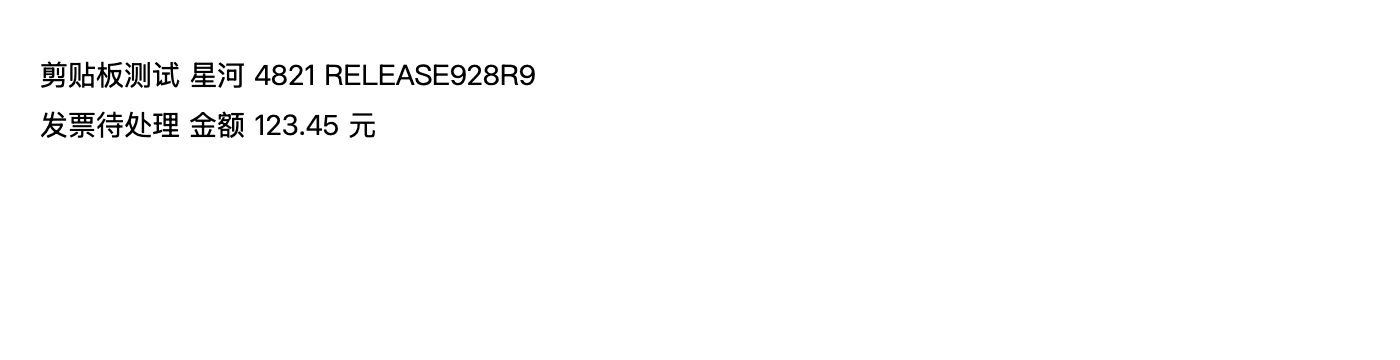
Open the full-size Chinese PNG. Searching images for RELEASE928R9 星河 returned one result with this OCR text:
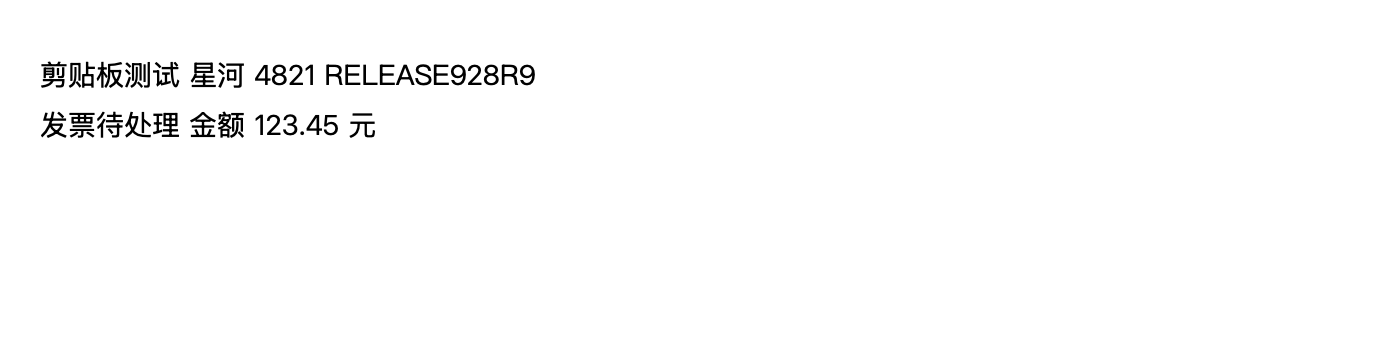
剪贴板测试 星河 4821 RELEASE928R9
发票待处理 金额 123.45 元
Its original PNG was also retrieved intact. Both image queries were empty before we introduced the test images, and neither result depended on copying the target words as plain text.
A separate same-machine comparison ran seven synthetic PNGs through the released 0.2.8 OCR service and the implementation now shipped in 0.2.9. These examples show where the change helped and where errors remain:
| Sample | Released 0.2.8 | OCR shipped in 0.2.9 |
|---|---|---|
| English, 28 px | Inserted a space into 123.45. | All three input lines matched. |
| English, 12 px | Read RAVEN as 4VEN and Invoice as In¥oice. | All three input lines matched. |
| Simplified and Traditional Chinese, 28 px | Missed the keyword 星河 in both images. | Recognized both lines; omitted a space before the currency unit. |
| English, 8 px, low contrast | Returned only a few characters. | Recovered more text, but read 123.45 as 123.49. |
| Code and punctuation, 18 px | Lost punctuation and split lines. | Preserved more code, but still confused O0 with 00. |
| Blank image | No text. | No text. |
Those seven fixtures are a small controlled sample, not an overall accuracy score. In particular, the tiny-text result shows why amounts need checking against the original picture.
If an image does not appear in search
| What you see | What to try |
|---|---|
| No image card | Check whether capture is paused or the source app is excluded. Confirm you copied the image rather than only saving it to disk. |
| Image card, but no word match | Wait for recognition, remove extra filters, and try another distinctive word. Recapture larger, clearer text if needed. |
| An old image still has poor OCR after upgrading | Open its preview and click Re-run. Updating does not automatically replace older saved OCR text. |
| Chinese mixed into a short English line is missed | Try another keyword or a larger region with more language context. Automatic language detection can choose the wrong model. |
| Pasting gives a newer item or text instead of the image | Select the image and press Command-C again; check Paste as plain text by default. |
| An older image disappeared | Check retention and storage limits. OCR does not keep items forever. |
The regression suite retains a specific mixed-language failure: Clipboard 星河 4821 Search was recognized with Æ instead of 星河. More Chinese context passed. This is why we do not promise that every language mixture will work.
What this workflow covers
OCR and history storage run on the Mac. The search covers retained clipboard images; it does not scan every screenshot file on your disk or recover images that were never captured. Sending a recovered image to another app or an AI service is a separate action. See the privacy policy for storage and analytics details.
Searchable image text is also available in other tools, including Raycast Clipboard History. If you already use such a tool, try its text-recognition setting first. Paste It!'s workflow is useful when you want copied images and text in the same history, with the option to retrieve them through MCP.
Test details and limits
Tests were run on September 28, 2026, on Apple Silicon with macOS 26.6.2. The text/image capture and MCP retrieval checks were rerun on released 0.2.9 / build 11. The installed app passed signature verification, and its executable and code-signing hash matched the official Apple Silicon DMG.
The two images shown above were written through the pasteboard API and retrieved by Codex through local MCP requests. Separately, we ran each of the seven 1400 × 360 comparison PNGs once per source version. English used Menlo, Chinese used PingFang; text was black on white except the 8 px light-gray sample. That source comparison was run before release; the OCR service is unchanged in the 0.2.9 release tag. It is a separate run from the installed-app samples, which is why spacing can differ.
Version 0.2.9 uses Vision's accurate mode with automatic language detection and no language correction, on a serial background queue. Search can lag behind capture; we did not measure its final latency or compare complete competing apps. The Mac validation record also records one mixed-language image requiring a second copy before it became searchable. System screenshot shortcuts, history-panel copying, older macOS versions and rapid capture without missed items remain outside this test's coverage.